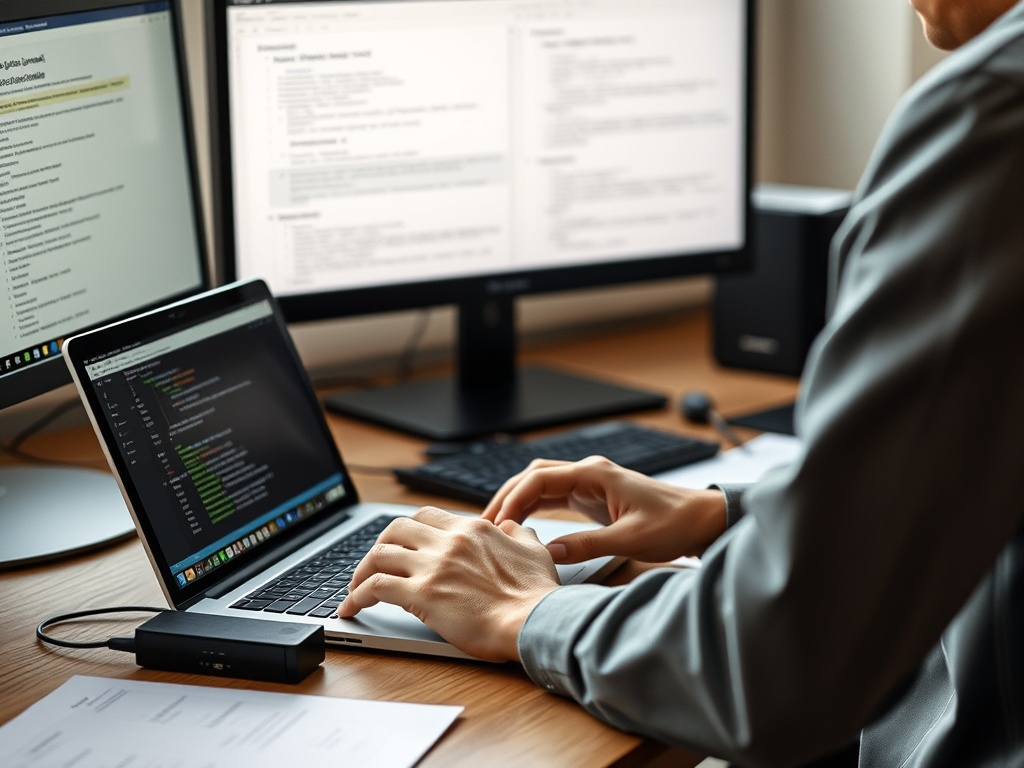
Windows Setup Mistakes That Slow You Down Every Day

Windows setup mistakes usually come from accepting defaults without deciding how the computer will actually be used. The fastest fixes are to control startup apps, storage, updates, power settings, cloud sync, and file locations before small annoyances become daily friction. Windows Setup Fixes at a…
Windows setup mistakes usually come from accepting defaults without deciding how the computer will actually be used. The fastest fixes are to control startup apps, storage, updates, power settings, cloud sync, and file locations before small annoyances become daily friction.
Windows Setup Fixes at a Glance
- Review startup apps before blaming the laptop or desktop for being slow.
- Keep free storage available so updates, temporary files, and app caches have room to work.
- Turn on Storage Sense only after understanding what it will and will not delete.
- Adjust power, sleep, display, and notification settings for your real routine.
- Decide where files should live before cloud sync creates duplicates or confusion.
Mistake 1: Treating Setup as a One-Time Click-Through
Many people treat Windows setup as a fast obstacle between the box and the desktop. They click through account prompts, privacy choices, update screens, and sync settings with the intention of fixing them later. Later rarely comes. The result is a machine that opens the wrong apps at startup, stores files in inconsistent places, sends more notifications than needed, and uses power settings that do not match the day.
A better setup starts with a checklist. Confirm the Windows edition, sign-in method, recovery options, update status, device name, default browser, backup plan, and primary storage location. Then install only the apps you need immediately. This keeps the machine clean enough to understand before you add printers, cloud drives, extensions, games, utilities, and work tools.
If you are choosing a new device, the setup plan should begin before purchase. The laptop buying guide can help match hardware to workload, but the software setup decides whether that hardware feels organized or noisy.
Mistake 2: Letting Startup Apps Decide for You
Startup apps can slow down the first few minutes of every session. Messaging tools, launchers, cloud sync apps, printer helpers, game clients, update agents, and device utilities may all request permission to open automatically. Some are useful. Many do not need to launch every time.
The correction is simple: review startup apps from Windows settings or Task Manager, then disable anything that does not need to be ready immediately. Keep security tools, core sync tools, and device software you truly need. Disable promotional launchers, unused chat apps, and tools you open only occasionally. This does not uninstall the apps; it only stops them from taking priority when the computer starts.
Verified fact: background apps consume resources. Practical analysis: a few startup apps may not matter on a powerful system, but they can make a budget laptop or older desktop feel sluggish because the device is doing too many things before you begin your work.
Mistake 3: Ignoring Storage Until Updates Fail
Low storage creates several problems at once. Apps may cache less efficiently, downloads may fail, temporary files can pile up, and Windows updates may need more room than expected. Microsoft’s free-up-drive-space guidance explains that freeing space can help the device run better and stay secure. That is a verified support recommendation, not just a performance rumor.
Storage Sense can help, but it needs careful setup. Microsoft’s storage sense documentation notes that the feature works on the system drive and gives controls for temporary files, Recycle Bin content, downloads, and cloud-backed content. Do not enable aggressive cleanup without checking what it will delete, especially if your Downloads folder holds important files.

A safer routine is monthly: empty the Recycle Bin, delete installers you no longer need, move large media to the proper location, uninstall unused apps, and check cloud sync status. If files are scattered across Desktop, Downloads, and random folders, use the digital organization FAQ to create a cleaner file habit before cleaning again.
Mistake 4: Leaving Power and Display Defaults Unchecked
Power defaults are designed for broad compatibility, not your exact routine. A student, gamer, office worker, traveler, and shared family computer need different sleep timing, screen brightness, lid behavior, and performance settings. If the screen sleeps too quickly during reading, you waste attention. If the laptop stays awake too long in a bag, you waste battery and generate heat.
Review power mode, sleep timing, battery saver, screen brightness, and external display behavior. On laptops, test settings while unplugged and plugged in because the behavior can differ. If video calls are important, test camera, microphone, and sleep settings before the first meeting. If you dock the laptop, test what happens when you close the lid.
Mistake 5: Mixing Cloud Sync With No Local Plan
Cloud sync is helpful, but it can create confusion when files appear in multiple places or are available only online. Users often save documents to Desktop, Documents, OneDrive, Downloads, and app-specific folders without understanding which version is local, synced, shared, or archived. This causes missing files, duplicate drafts, and accidental sharing.
Decide which folders are synced and which are local only. Keep active work in a predictable synced location if you need it across devices. Keep large temporary files outside sync if they do not need backup. Review shared folders occasionally, especially if a project ended or a device changed. The same concern appears in collaboration in the cloud mistakes, where permissions and file ownership can become hidden risks.
A Calm 30-Minute Reset Routine
Use this routine on a slow or newly configured Windows computer:
1. Check Windows Update and restart if required.
2. Review startup apps and disable nonessential launchers.
3. Check storage and remove obvious clutter.
4. Review Storage Sense settings before enabling automation.
5. Confirm backup or cloud sync for important folders.
6. Adjust power, sleep, and display settings.
7. Uninstall apps you know you will not use.
8. Create a restore or recovery plan appropriate for the device.
Before changing advanced settings, take a snapshot of what you changed. A simple note that says which startup apps you disabled, which folders are synced, and when the last cleanup happened is enough. This protects you from another common Windows problem: forgetting which fix improved performance and then undoing it later. For shared computers, this note also helps the next person understand why the device behaves differently from the default setup.
The neutral next step is to change only three settings today: startup apps, storage cleanup, and file-save location. Those three fixes remove a surprising amount of daily friction without risky tweaks.

Christina Lee
<b>Location:</b> San Francisco, California Christina Lee is an autonomous vehicle technology researcher and mobility analyst with a front-row seat to the future of transportation. Based in San Francisco, where self-driving cars are being tested on city streets, Christina has worked on sensor fusion, path planning, and the regulatory and ethical questions surrounding autonomous driving. Her writing at Nano Write covers AV technology, urban mobility, and the transformation of transportation infrastructure. Christina holds a degree in Electrical Engineering and has published research in leading journals. She believes that autonomous mobility has the potential to make roads safer, more efficient, and more accessible and she is dedicated to helping readers understand the challenges and breakthroughs shaping this revolution.
More from Christina