Phishing Setup Checklist: What to Review Before You Buy or Upgrade

A phishing-safe setup means reviewing accounts, devices, browsers, email, payment habits, and recovery options before a new purchase or upgrade introduces fresh risk. The goal is to make suspicious messages easier to spot and account recovery easier if you make a mistake. Phishing Review Snapshot…
A phishing-safe setup means reviewing accounts, devices, browsers, email, payment habits, and recovery options before a new purchase or upgrade introduces fresh risk. The goal is to make suspicious messages easier to spot and account recovery easier if you make a mistake.
Phishing Review Snapshot
- Phishing can arrive through email, text messages, calls, social messages, QR codes, ads, and fake checkout pages.
- Buying a new device or upgrading software is a good time to review passwords, recovery email, multifactor authentication, and browser protections.
- Do not rely on your ability to “just notice” every scam; configure tools that reduce exposure.
- Treat urgent payment requests, password reset prompts, and shipping problems as verification tasks, not as immediate clicks.
- If you clicked, act quickly: disconnect where appropriate, change passwords from a trusted device, and report the message.
Before You Buy: Check the Security Basics
Before buying a new laptop, router, phone, domain, hosting plan, productivity app, or cloud service, check whether the product will help or complicate your security routine. Does it support multifactor authentication? Does it send security alerts? Can you manage trusted devices? Can you see active sessions? Does the vendor provide clear update information? These are practical buying questions, not advanced cybersecurity questions.
The FTC’s phishing guidance explains that scammers use messages to steal passwords, account numbers, and other sensitive information. CISA’s phishing guidance for defenders and software manufacturers is more technical, but the everyday lesson is similar: phishing is a process, not just a suspicious email. Attackers try to move you from attention to action before you verify.
If you are buying a router or upgrading home connectivity, combine this checklist with router selection guidance because a secure network and secure accounts reinforce each other. If you are buying a laptop, review the device’s update path and sign-in options before moving all accounts to it.
Before You Upgrade: Review Account Recovery
Upgrades are risky moments because they interrupt normal habits. You may sign in to many accounts at once, approve new devices, restore browser data, install extensions, and reconnect cloud drives. Before starting, verify your recovery email, recovery phone, authenticator app, backup codes, and password manager access. If your only recovery method is stored on the device you are replacing, fix that first.
Create a short recovery note stored in a safe place. It should not contain passwords, but it can list critical accounts, recovery methods, and where backup codes are stored. For family or small-business devices, identify who can recover the account if the main user is unavailable.
Configure Email and Browser Protections
Email and browser settings can reduce phishing exposure. Turn on spam and phishing filters where available. Keep browsers updated. Remove extensions you do not recognize. Review saved passwords and replace reused passwords with unique ones. Enable multifactor authentication for email, banking, cloud storage, domain registration, hosting, and payment accounts. Email deserves special care because it often controls password resets for other services.
For browsers, check the default search engine, notification permissions, pop-up settings, and saved payment methods. Some phishing pages push notification prompts or fake support messages. If you do not know why a site has notification permission, remove it. If a browser extension no longer has a clear purpose, uninstall it.
This is also a good point to review operating system setup. A cluttered computer with too many startup apps and old downloads can hide risky files and make updates harder. The guide to Windows setup mistakes covers the everyday maintenance side of that issue.
Train Your Own Red-Flag Routine
A red-flag routine is a short set of questions you ask before clicking, paying, downloading, or signing in. Does the message create urgency? Does the sender address look slightly wrong? Did you expect the message? Is the link destination consistent with the organization? Is the attachment necessary? Is the request asking for a password, gift card, bank transfer, verification code, or remote access?
Do not click the message to investigate. Open a browser and type the known website address yourself, use a saved bookmark, or contact the organization through a verified channel. For delivery messages, use the order history from the merchant site rather than the text link. For workplace requests, verify through a separate channel before sending money, changing bank details, or sharing files.
Verified fact: phishing messages may impersonate known organizations. Practical analysis: the most dangerous messages are often the ones that fit a real event, such as a delivery, renewal, job application, invoice, or software update.
What to Do If You Clicked
If you clicked a suspicious link but did not enter information, close the page and run a security check if the device behaves oddly. If you entered a password, change it immediately from a trusted device and sign out other sessions. If you entered financial information, contact the bank or card issuer. If you downloaded a file, do not open it again; scan the device and ask for help if it may be work-related or high-risk. Report phishing attempts to your email provider, workplace security team, or relevant authority.
For shared files and team tools, clicking can create wider access problems. That is why cloud collaboration risk habits matter: permissions, shared links, and account recovery all shape what happens after a mistake.
Purchase and Upgrade Checklist
Before buying or upgrading, complete this checklist:
- Confirm update support for the device, app, router, or service.
- Turn on multifactor authentication for the account used to purchase or manage it.
- Update recovery email, phone, authenticator, and backup codes.
- Remove old browser extensions and unused saved payment methods.
- Check email filters and account alert settings.
- Use a password manager to create unique passwords.
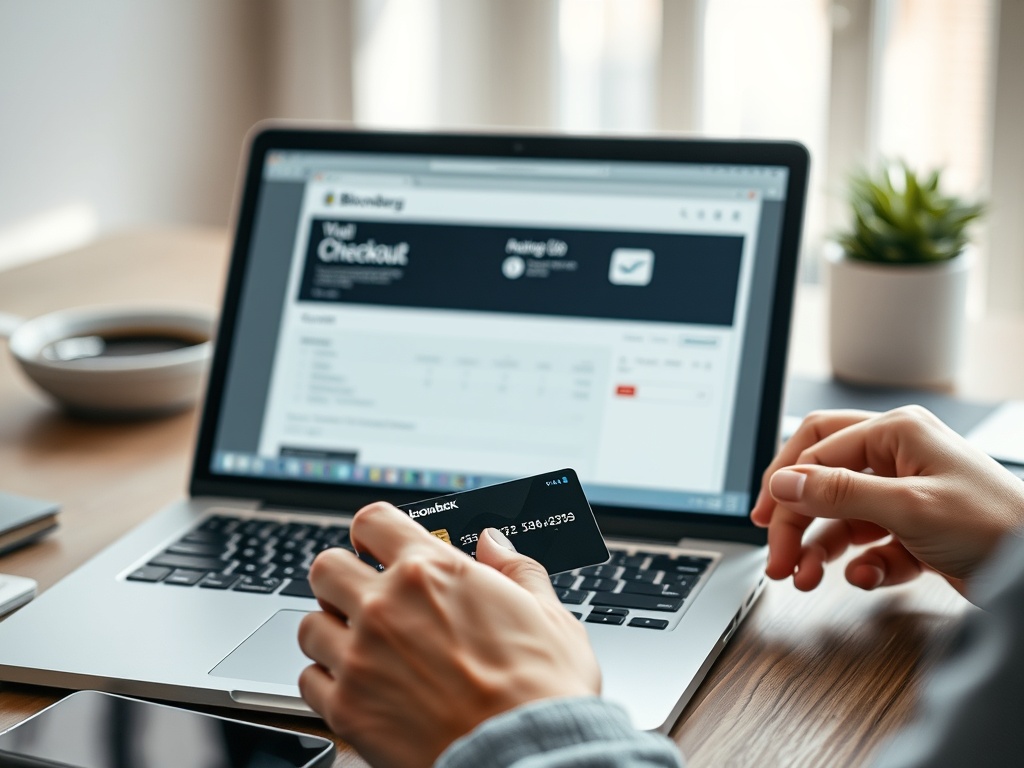
- Verify the seller, URL, and checkout page before paying.
- Keep receipts and support contacts in a safe folder.
For purchases, keep a separate habit: never use a link in an unexpected message to renew, upgrade, or fix billing. Open the service from a saved bookmark or type the address yourself. If the message is legitimate, the same alert should usually appear inside your account. This one habit reduces the risk from fake invoices, fake delivery alerts, fake domain renewals, and fake software subscription notices.
The neutral next step is to review the recovery settings for your email account today. If your email is secure, every other account is easier to protect.

Christina Lee
<b>Location:</b> San Francisco, California Christina Lee is an autonomous vehicle technology researcher and mobility analyst with a front-row seat to the future of transportation. Based in San Francisco, where self-driving cars are being tested on city streets, Christina has worked on sensor fusion, path planning, and the regulatory and ethical questions surrounding autonomous driving. Her writing at Nano Write covers AV technology, urban mobility, and the transformation of transportation infrastructure. Christina holds a degree in Electrical Engineering and has published research in leading journals. She believes that autonomous mobility has the potential to make roads safer, more efficient, and more accessible and she is dedicated to helping readers understand the challenges and breakthroughs shaping this revolution.
More from Christina