How to choose a router that fits your space and devices

Choose a router by matching your internet speed, home layout, wall materials, device count, security needs, and upgrade plans. The best router is not always the fastest advertised model; it is the one that gives stable coverage where people actually use the connection. Router Choice…
Choose a router by matching your internet speed, home layout, wall materials, device count, security needs, and upgrade plans. The best router is not always the fastest advertised model; it is the one that gives stable coverage where people actually use the connection.
Router Choice Map
- Measure the physical space before comparing router labels.
- A mesh system helps with coverage, but a single well-placed router can be enough for smaller homes.
- Wired Ethernet is still the most reliable option for stationary devices that need top speeds.
- Wi-Fi generation matters only if your devices and internet plan can benefit from it.
- Security updates, WPA3 support, guest networks, and easy administration are part of the buying decision.
Step 1: Measure the Space and the Obstacles
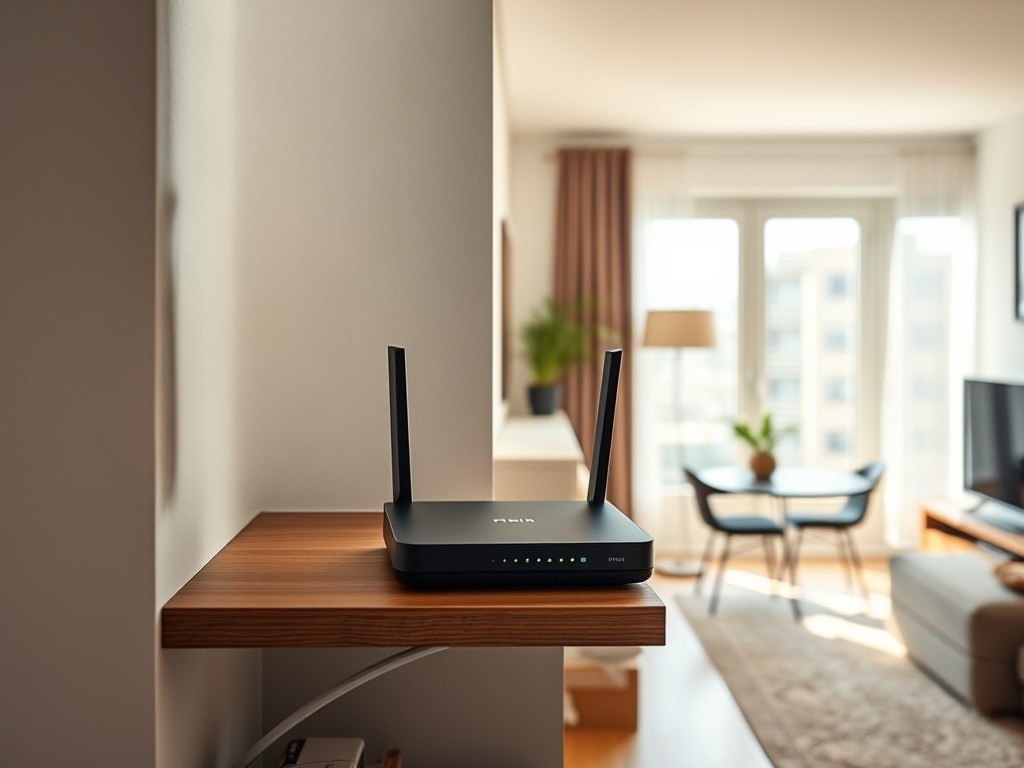
Start with the home, not the box. A router has to push signal through walls, floors, appliances, furniture, mirrors, metal, and distance. A small apartment may work well with one central router. A long house, multi-floor home, or space with thick walls may need a mesh system or wired access points. The Federal Communications Commission’s home network tips recommend central router placement and note that extenders, mesh routers, and Ethernet connections can improve coverage or speed in different situations.
Draw a quick map of where people actually use the internet: desks, bedrooms, living room, kitchen, outdoor seating, gaming area, TV wall, and smart-home zones. Mark the modem location. If the modem sits in a far corner, the router may start at a disadvantage. You may be able to move it, run Ethernet, or use a mesh node with wired backhaul.
This space-first thinking also helps avoid buying a router only because the number on the box looks larger. Fast wireless speed at five feet does not matter if the office upstairs keeps dropping video calls.
Step 2: Match Wi-Fi Generation to Your Devices
Modern routers advertise Wi-Fi 6, Wi-Fi 6E, Wi-Fi 7, and related features. The Wi-Fi Alliance explains that each generation adds capabilities and certification programs through its Wi-Fi technology information. Verified fact: newer generations can support improved performance features. Practical analysis: you see benefits only when your devices, router, interference conditions, and internet plan align.
Wi-Fi 6 is still sensible for many homes. Wi-Fi 6E adds access to the 6 GHz band where supported, which can reduce congestion but may have shorter range through obstacles. Wi-Fi 7 is more forward-looking and can be valuable for new premium devices, dense households, or users who keep routers for many years. It may be unnecessary if your devices are older, your plan is modest, or your main issue is wall coverage.
Step 3: Choose Between One Router, Mesh, or Wired Backhaul
A single router is simplest. Choose it when the space is compact, the modem location is central, and most devices are nearby. A mesh system uses multiple nodes to spread coverage. It is useful when a single router cannot reach bedrooms, offices, or upper floors. Mesh is not magic; nodes still need good placement and a strong link to each other.
Wired backhaul is the strongest option when available. That means connecting mesh nodes or access points with Ethernet so wireless devices do not rely on a weak wireless connection between nodes. If you can run Ethernet to a home office, gaming console, TV streaming area, or mesh node, it can reduce congestion and improve reliability.

For small websites and home offices, connectivity decisions also affect online work. If your router is part of remote publishing, streaming, client calls, or site management, a stable local network supports the same goals discussed in the article on CDN and web host choices for performance bottlenecks. One solves the home connection; the other solves delivery from your website to visitors.
Step 4: Check Security and Update Support
Security should be part of router choice. Look for automatic firmware updates or clear update notifications, strong default security settings, guest network support, WPA3 support where possible, and an admin interface that is easy enough to review. NIST’s consumer-grade router cybersecurity profile emphasizes outcomes such as keeping router software up to date. That guidance is aimed at manufacturers and standards, but it gives buyers a useful clue: update support is not optional.
After purchase, change the admin password, use a strong Wi-Fi password, disable features you do not need, create a guest network for visitors and untrusted devices, and keep firmware current. Do not reuse the Wi-Fi password as the router admin password. Keep the router in a location where it has airflow and is not hidden behind metal or thick furniture.
Step 5: Place and Test Before Buying Add-Ons
Before buying extenders, test placement. Put the router high, central, and away from large appliances when possible. Test speed and reliability in each important room at different times of day. Video calls, gaming, streaming, and file uploads reveal problems better than a single speed test. If one room is weak, move the router slightly and test again before adding hardware.
Extenders can be inexpensive, but they can also add confusion if placed in an already weak zone. Mesh is cleaner for many homes, but it costs more. Ethernet is less glamorous, but it is often the most reliable solution for stationary devices. If phishing protection, secure work, or online banking are part of your concern, the phishing setup checklist is a logical companion because network trust and account trust work together.
Router Success Checklist
Before buying, confirm these points:
- Your internet plan speed and modem compatibility.
- The size, layout, and construction of your space.
- Number of active devices at busy times.
- Need for gaming, video calls, streaming, smart-home devices, or remote work.
- Wi-Fi generation supported by your main devices.
- Security update process and guest network controls.
- Return policy in case real coverage is weaker than expected.
A final buyer check is support life. Routers are long-lived devices, but they should not be treated like furniture. If a model has unclear firmware history, confusing admin controls, or no obvious way to receive updates, choose another option. For home offices, also consider a router with simple parental controls, guest access, and device identification so you can see what is connected without guessing. Those features are not glamorous, but they make maintenance easier after the return window closes.
The neutral next step is to map the three places where Wi-Fi must work well, then choose the simplest router or mesh setup that can cover those places reliably.

Christina Lee
<b>Location:</b> San Francisco, California Christina Lee is an autonomous vehicle technology researcher and mobility analyst with a front-row seat to the future of transportation. Based in San Francisco, where self-driving cars are being tested on city streets, Christina has worked on sensor fusion, path planning, and the regulatory and ethical questions surrounding autonomous driving. Her writing at Nano Write covers AV technology, urban mobility, and the transformation of transportation infrastructure. Christina holds a degree in Electrical Engineering and has published research in leading journals. She believes that autonomous mobility has the potential to make roads safer, more efficient, and more accessible and she is dedicated to helping readers understand the challenges and breakthroughs shaping this revolution.
More from Christina